
Saving, backup, and recovery
Works are primarily stored in the current browser's local database for the current site. Autosave helps daily editing but cannot replace an independent backup.
Four different file types
| File | Purpose | Important distinction |
|---|---|---|
| Markdown/TXT prose export | Reading, submission, external editing | Does not contain complete project relationships and run records |
| Product release JSON, such as a short-fiction release | Frozen delivery manifest for one product | Not a full project backup; do not use the project JSON import entry |
| Complete project JSON backup | Restore project data, registered records, and references | Use project JSON import in data management; the supported backup format must match |
Local memory workspace / .storyforge.json package | Readable documents, recovery capsule, and validation information | Use workspace recovery or workspace-package import; not an ordinary prose ZIP |
The .json extension alone does not identify purpose. Short-fiction release JSON is a frozen work-version manifest. Data management exports full project backups. A workspace package is also JSON but has its own format and recovery entry.
First backup
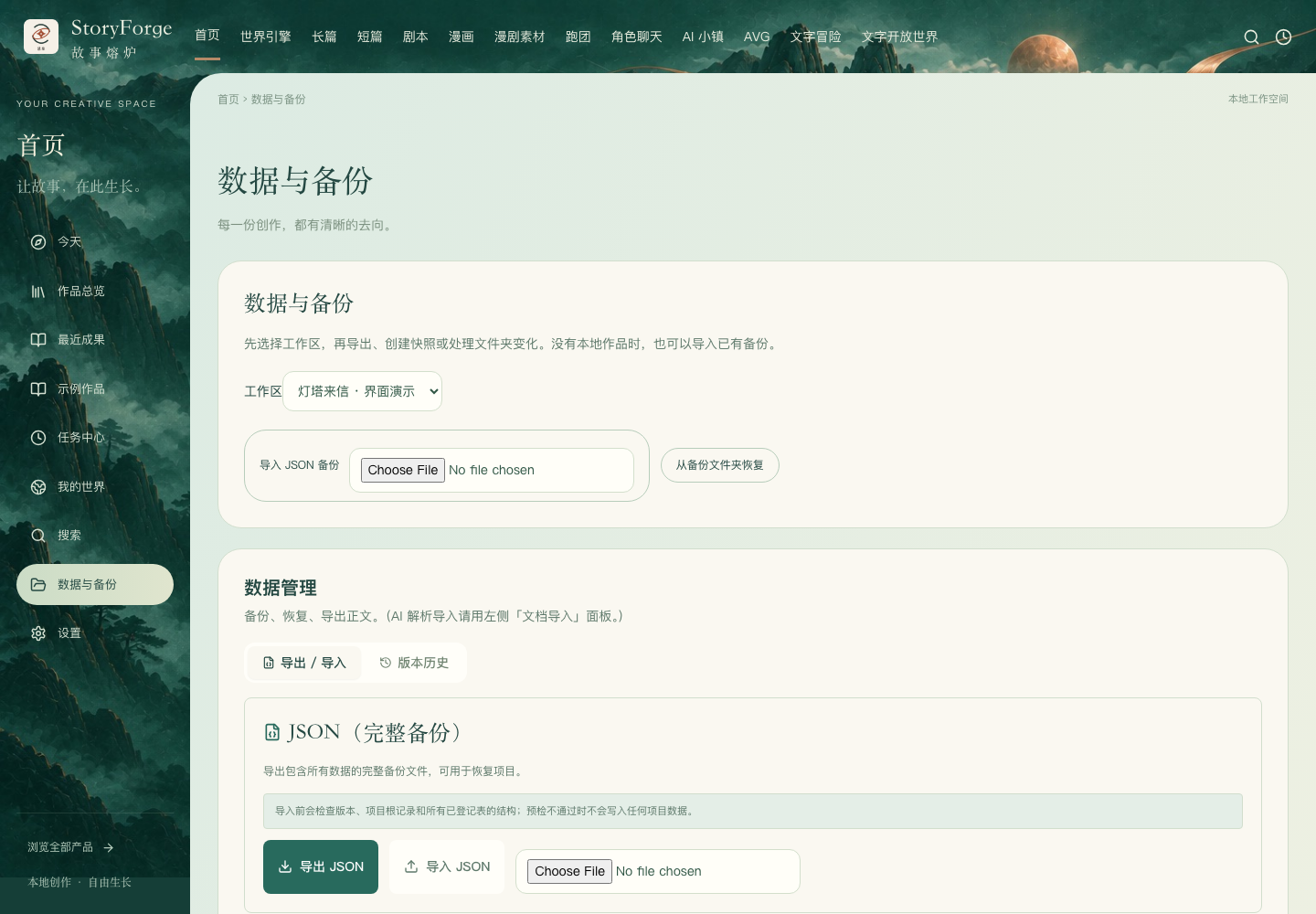
- Open Home → Data and backups (首页 → 数据与备份) and select a workspace. Product-level Versions and export or General settings also provide backup entries.
- Export complete project JSON and confirm the downloaded file exists.
- Keep another copy elsewhere; include the work and date in the name.
- Save important prose separately in a reading format.
Are images, attachments, and runs included?
Complete project JSON exports registered data within the backup scope and makes registered shared media objects portable: it reads actual files, validates size and SHA-256, then embeds base64 content with its MIME type. Registered, ready media such as images are therefore not merely exported as local paths. Large media can make the JSON substantially larger.
This does not automatically bundle arbitrary external URLs, unrelated disk files, or unfinished downloads. Unready media, missing bytes, or failed integrity checks can block a complete backup. Repair the files and export again; do not mistake a failed download for a valid backup.
Recovery capsules can preserve runs, candidates, author decisions, and adoption evidence. These may include private manuscripts and context; full backups are not suitable public sharing packages by default.
Workspace packages versus disk folders
Export workspace package (导出工作区包) in data management generates readable documents and a full recovery capsule from the current browser project, downloading .storyforge.json. It does not automatically merge unadopted disk edits. If the newest edits are on disk, check differences and confirm adoption before exporting.
Disk access depends on browser folder authorization. Readable Markdown alone is not complete recovery material. When moving devices, keep the entire folder including .storyforge/, or use a workspace package—not just chapter files. Recovery validates identity, manifests, the capsule, and hashes. Do not delete or alter validation files to bypass errors.
What to check after recovery
Keep the original backup and folder; do not delete the old environment before verifying recovery. Check:
- Current project, works, chapter counts, opening/ending prose, and recent edits.
- Characters, settings, world references, and active plans or versions.
- Whether key images and other assets actually open, not merely appear in a list.
- Candidates, run records, and releases you still need.
- Whether workspace binding and authorization need reestablishing; inspect differences before choosing sync direction.
Workspace import rebinds identities of local objects. Some historical run receipts may consequently become “Needs review.” This explicitly signals changed references; it does not mean historical evidence was deleted. Do not treat an old success status as current-project verification.
The current complete project backup format is version 14, and import requires the exact supported format; arbitrary old JSON does not automatically upgrade. If rejected, retain the original and error details and read version compatibility. Do not change version numbers, fill missing tables with empty values, or remove fields to force import.
Changing browser, device, or address
The web app, localhost, another port, or another browser may use different storage. Export in the original environment, then restore through the supported target entry. Check works, chapters, and key media before retiring the old environment.
Private browsing, clearing site data, or losing a browser profile may make local works inaccessible.
Disk workspaces
Bind a folder under Settings → Project storage workspace (设置 → 项目存储工作区), then inspect differences in data management. Binding does not automatically write to disk; completing a model task does not automatically synchronize it either.
Data suddenly missing
First check the address, port, browser, and browser profile against the original environment. Do not immediately clear site data or overwrite the original folder.
Restore JSON or workspace packages through their supported entries. If an old backup is rejected, preserve it, read compatibility guidance, and submit feedback.
Large project backups
The October 4 mainline update improves large JSON file reading and writing, reducing failures caused by constructing one complete string in memory. Image-heavy backups still need sufficient storage and processing time. Confirm the downloaded file exists and verify recovery in an isolated environment before retiring the original environment. Large-file support does not guarantee every device can restore a backup of any size.
Evidence: Large backups and pause recovery.